

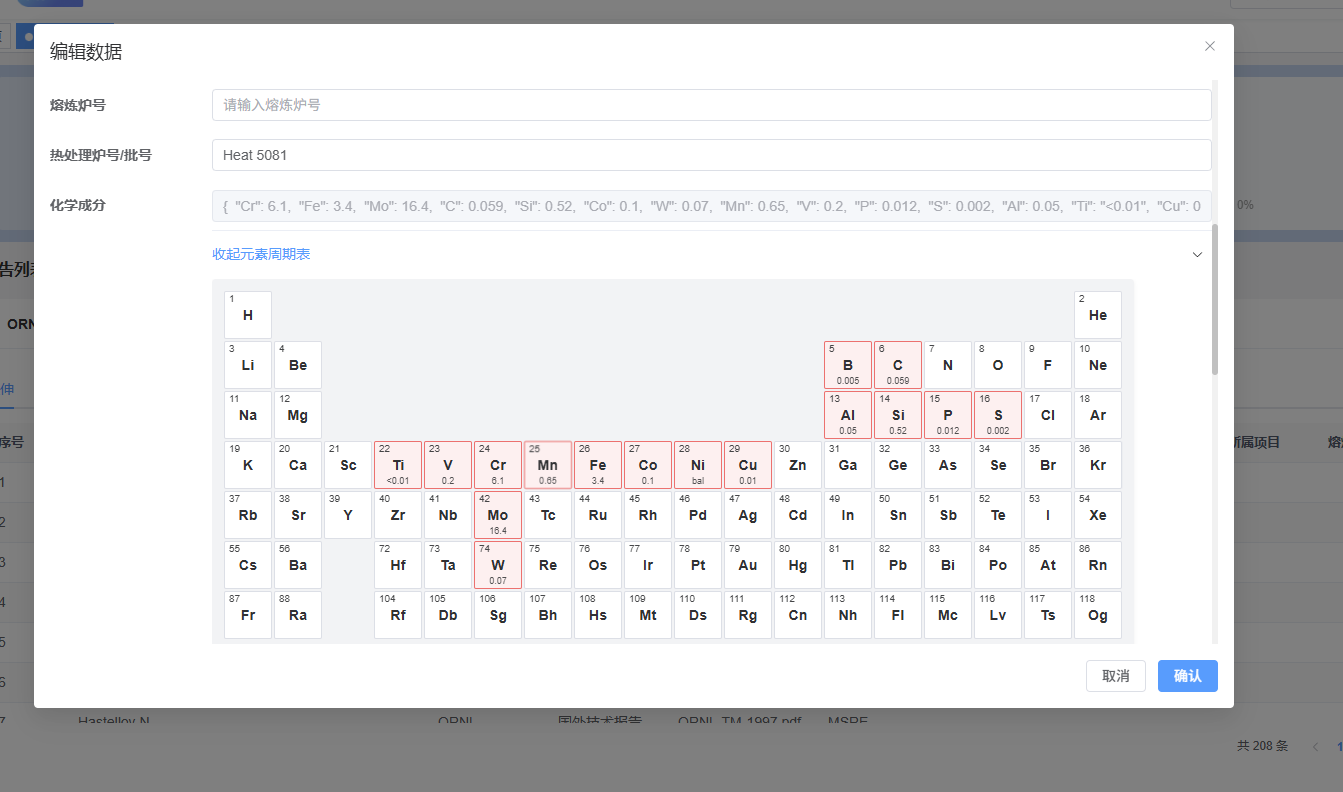
一个通用的元素周期表组件,用于展示和编辑材料的化学成分。组件基于标准周期表布局(10 行 × 18 列),支持显示元素的基本信息(原子序数、元素符号、名称),并可双击编辑元素的含量值。
效果
技术栈
组件基于以下技术栈开发:
Vue:
3.5.16- 使用 Composition API (<script setup>)Element Plus:
2.10.7- UI 组件库(使用el-input组件及 Element Plus 样式规范)
核心依赖
vue:^3.5.16element-plus:^2.10.7@element-plus/icons-vue:^2.3.1(如使用图标)
数据源
元素周期表元数据参考 Bowserinator/Periodic-Table-JSON,组件内部使用 PeriodicTableJSON.json 作为数据源。
技术特点
使用 Vue 3 Composition API 的
defineModel实现双向绑定兼容 Element Plus 的 CSS 变量系统,支持主题定制
使用 CSS Grid 布局实现响应式周期表网格
功能特性
标准周期表布局:10 行 × 18 列网格布局,包含主表(1-7 周期)、镧系(第 9 行)、锕系(第 10 行)
元素信息展示:显示原子序数、元素符号,鼠标悬停显示元素名称
CPK 颜色:可选显示元素的 CPK 颜色(基于
cpk-hex字段)化学成分编辑:双击元素格子可编辑该元素的含量值
视觉反馈:包含化学成分的元素会显示红色边框和浅红色背景
双向绑定:通过
v-model:chemicalComposition与父组件同步数据
Props
v-model
数据格式
输入格式(chemicalComposition)
组件接收一个 JSON 字符串,键为元素符号(如 "Fe", "Cr"),值为数字或字符串:
{
  "Fe": 95.5,
  "Cr": 6.1,
  "Ni": 0.5,
  "C": "0.08"
}
输出格式
编辑后,组件会输出格式化的 JSON 字符串(带缩进):
{
  "Fe": 95.5,
  "Cr": 6.1,
  "Ni": 0.5
}
使用示例
基础用法
<template>
  <PeriodicTable v-model:chemicalComposition="composition" />
</template>

<script setup>
import { ref } from 'vue'
import PeriodicTable from '@/components/PeriodicTable'

const composition = ref('{"Fe": 95.5, "Cr": 6.1}')
</script>
禁用颜色显示
<PeriodicTable
  :show-color="false"
  v-model:chemicalComposition="composition"
/>
自定义单元格大小
<PeriodicTable
  :cell-size="60"
  v-model:chemicalComposition="composition"
/>
在折叠面板中使用
<template>
  <el-collapse v-model="expanded">
    <el-collapse-item name="periodic">
      <template #title>
        <el-text type="primary">从元素周期表选择</el-text>
      </template>
      <PeriodicTable
        :show-color="false"
        v-model:chemicalComposition="formData.chemicalComposition"
      />
    </el-collapse-item>
  </el-collapse>
</template>

<script setup>
import { ref } from 'vue'
import PeriodicTable from '@/components/PeriodicTable'

const expanded = ref([])
const formData = ref({
  chemicalComposition: ''
})
</script>
交互说明
编辑元素含量
双击元素格子:进入编辑模式,底部显示输入框
输入数值:支持数字或字符串
提交编辑:
按
Enter键提交点击输入框外部(失焦)自动提交
删除含量:输入空值并提交,会删除该元素的含量记录
视觉状态
普通元素:白色/CPK 颜色背景,深色边框,显示原子序数和元素符号
包含化学成分的元素:红色边框(
--el-color-danger),浅红色背景(--el-color-danger-light-9),底部显示含量值悬停效果:元素格子轻微放大(
scale(1.04))并显示阴影,提升交互反馈空单元格:透明背景,无边框,不响应悬停效果
技术实现
布局映射
行 0-6:对应 JSON 中的
ypos1-7(主表)行 7:空行(用于分隔)
行 8:对应
ypos9(镧系)行 9:对应
ypos10(锕系)
元素过滤
组件只显示原子序数 1-118 的元素,排除 119 号及以上的未正式纳入周期表的元素。
颜色计算
当 showColor 为 true 时:
使用元素的
cpk-hex字段作为背景色(6 位十六进制,不含#前缀)根据背景亮度自动选择黑色或白色文字,确保文字可读性
使用相对亮度公式计算:
L = 0.299 * r + 0.587 * g + 0.114 * bL > 0.5:使用深色文字(#1d1e1f)L ≤ 0.5:使用浅色文字(#fafafa)
当 showColor 为 false 时,所有元素使用 Element Plus 的默认背景色和文字颜色。
输入框聚焦
使用函数式 ref 解决 v-for 中 el-input 无法自动聚焦的问题:
let inputRef = null
// ...
:ref="(el) => (inputRef = el)"
在 startEdit 函数中,通过 nextTick 确保 DOM 更新后再调用 focus() 方法。
双向绑定实现
组件使用 Vue 3.3+ 的 defineModel 宏实现双向绑定,简化了父子组件间的数据同步:
const chemicalComposition = defineModel('chemicalComposition', { type: String, default: '' })
编辑完成后,直接更新 chemicalComposition.value 即可同步到父组件。
样式定制
组件使用 Element Plus 的 CSS 变量系统,可通过以下变量自定义样式:
基础样式变量
--el-border-color:边框颜色(默认#dcdfe6)--el-border-radius-small:圆角大小(默认4px)--el-border-radius-base:容器圆角大小(默认8px)--el-bg-color:单元格背景色(默认#ffffff)--el-bg-color-page:容器背景色(默认#f2f3f5)--el-text-color-primary:文字颜色(默认#303133)--el-padding-base:内边距(默认12px)--el-font-family:字体族
化学成分标记样式
--el-color-danger:危险色,用于标记包含化学成分的元素边框(默认#f56c6c)--el-color-danger-light-9:浅红色背景,用于标记包含化学成分的元素背景
自定义示例
/* 自定义周期表容器背景 */
.periodic-table {
  --el-bg-color-page: #f5f7fa;
}

/* 自定义元素格子边框 */
.periodic-table__cell {
  --el-border-color: #e4e7ed;
}
注意事项
数据格式:
chemicalComposition必须是有效的 JSON 字符串,否则会被解析为空对象。组件内部使用JSON.parse()解析,无效格式会静默失败并返回空对象。元素符号:使用标准的化学元素符号(如
"Fe","Cr"),区分大小写。组件会根据 JSON 数据中的symbol字段进行匹配。数值类型:含量值可以是数字或字符串,组件会尝试转换为数字;无法转换的保持为字符串。例如
"C": "0.08"会被保留为字符串,而"Fe": 95.5会被存储为数字。空值处理:空字符串或无效 JSON 会被视为无化学成分。删除元素含量时,输入空值并提交即可。
编辑模式:同一时间只能编辑一个元素。双击另一个元素时会自动提交当前编辑并切换到新元素。
性能考虑:组件在初始化时会构建 10×18 的网格布局,元素数据在组件加载时一次性处理,适合在表单对话框或折叠面板中使用。
源码
点击展开查看完整源码
<template>
  <div class="periodic-table">
    <div class="periodic-table__grid" :style="gridStyle">
      <template v-for="(row, rowIndex) in grid" :key="rowIndex">
        <template v-for="(cell, colIndex) in row" :key="`${rowIndex}-${colIndex}`">
          <div
            v-if="cell"
            class="periodic-table__cell"
            :class="{
              'periodic-table__cell--empty': !cell.element,
              'periodic-table__cell--in-composition': cell.element && getCompositionValue(cell.element.symbol) != null
            }"
            :style="getCellStyle(cell)"
            :title="cell.element ? `${cell.element.name} (${cell.element.symbol})` : undefined"
            @dblclick="cell.element && startEdit(cell.element.symbol)"
          >
            <span v-if="cell.element" class="periodic-table__number">
              {{ cell.element.number }}
            </span>
            <span v-if="cell.element" class="periodic-table__symbol">
              {{ cell.element.symbol }}
            </span>
            <template v-if="cell.element">
              <el-input
                v-if="editingSymbol === cell.element.symbol"
                :ref="(el) => (inputRef = el)"
                v-model="editingValue"
                class="periodic-table__value-input"
                size="small"
                @keydown.enter.prevent="commitEdit()"
                @blur="commitEdit()"
              />
              <span v-else class="periodic-table__value">
                {{ formatCompositionValue(getCompositionValue(cell.element.symbol)) }}
              </span>
            </template>
          </div>
          <div v-else class="periodic-table__cell periodic-table__cell--empty" :style="emptyCellStyle" />
        </template>
      </template>
    </div>
  </div>
</template>

<script setup>
import { computed, ref, watch, nextTick } from 'vue'
// 该json参考https://github.com/Bowserinator/Periodic-Table-JSON/blob/master/PeriodicTableJSON.json
import elementsData from './PeriodicTableJSON.json'

const props = defineProps({
  /** 是否显示 CPK 颜色, true为根据json的cpk颜色渲染,false为默认黑白色 */
  showColor: {
    type: Boolean,
    default: true
  },
  /** 单元格最小宽度(px) */
  cellSize: {
    type: Number,
    default: 48
  }
})

const chemicalComposition = defineModel('chemicalComposition', { type: String, default: '' })

/** 只取 1–118 号元素,排除 119 等未正式纳入周期表的 */
const elements = elementsData.elements.filter(e => e.number >= 1 && e.number <= 118)

/** 按 (displayRow, xpos-1) 建立映射:行 0–6 为 ypos 1–7,行 8 为 ypos 9(镧系),行 9 为 ypos 10(锕系) */
const positionMap = new Map()
for (const el of elements) {
  // 只处理主表(ypos 1-7)、镧系(ypos 9)、锕系(ypos 10),跳过第 8 周期假想元素
  if (el.ypos === 8 || el.ypos < 1 || el.ypos > 10) continue
  const displayRow = el.ypos - 1
  const col = el.xpos - 1
  positionMap.set(`${displayRow}-${col}`, { element: el })
}

/** 网格:10 行 × 18 列 */
const grid = []
for (let r = 0; r < 10; r++) {
  const row = []
  for (let c = 0; c < 18; c++) {
    const key = `${r}-${c}`
    row.push(positionMap.get(key) || null)
  }
  grid.push(row)
}

const gridStyle = computed(() => ({
  display: 'grid',
  gridTemplateColumns: `repeat(18, ${props.cellSize}px)`,
  gridTemplateRows: `repeat(10, ${props.cellSize}px)`,
  gap: '2px'
}))

/** 解析化学成分 JSON 为 symbol -> value */
function safeParseComposition(str) {
  if (!str || !String(str).trim()) return {}
  try {
    const parsed = JSON.parse(str)
    return typeof parsed === 'object' && parsed !== null ? parsed : {}
  } catch {
    return {}
  }
}

const compositionDraft = ref({})

watch(
  chemicalComposition,
  (val) => {
    compositionDraft.value = safeParseComposition(val)
  },
  { immediate: true }
)

function getCompositionValue(symbol) {
  const val = compositionDraft.value?.[symbol]
  return val === undefined || val === null ? undefined : val
}

function formatCompositionValue(value) {
  if (value === undefined || value === null) return ''
  const num = Number(value)
  return Number.isFinite(num) ? String(num) : String(value)
}

const editingSymbol = ref('')
const editingValue = ref('')
/** el-input 组件实例,用于调用 focus() */
let inputRef = null

function startEdit(symbol) {
  editingSymbol.value = symbol
  editingValue.value = formatCompositionValue(getCompositionValue(symbol))
  nextTick(() => {
    // el-input 组件暴露了 focus() 方法
    inputRef?.focus?.()
  })
}

function commitEdit() {
  const symbol = editingSymbol.value
  if (!symbol) return

  const raw = String(editingValue.value ?? '').trim()
  if (!raw) {
    // 空值视为删除该元素含量(并取消红框)
    if (compositionDraft.value && Object.prototype.hasOwnProperty.call(compositionDraft.value, symbol)) {
      delete compositionDraft.value[symbol]
    }
  } else {
    const num = Number(raw)
    compositionDraft.value[symbol] = Number.isFinite(num) ? num : raw
  }

  editingSymbol.value = ''
  editingValue.value = ''
  // 使用 defineModel 直接赋值更新父组件
  chemicalComposition.value = JSON.stringify(compositionDraft.value, null, 2)
}

const emptyCellStyle = {
  backgroundColor: 'transparent',
  border: 'none',
  boxShadow: 'none'
}

function getCellStyle(cell) {
  if (!cell?.element) return {}
  const style = {
    border: '1px solid var(--el-border-color, #dcdfe6)',
    borderRadius: 'var(--el-border-radius-small, 4px)'
  }
  if (props.showColor && cell.element['cpk-hex']) {
    const hex = cell.element['cpk-hex']
    style.backgroundColor = `#${hex}`
    style.color = getContrastColor(hex)
  } else {
    style.backgroundColor = 'var(--el-bg-color, #ffffff)'
    style.color = 'var(--el-text-color-primary, #303133)'
  }
  return style
}

/** 根据背景亮度选黑/白文字 */
function getContrastColor(hex) {
  const r = parseInt(hex.slice(0, 2), 16) / 255
  const g = parseInt(hex.slice(2, 4), 16) / 255
  const b = parseInt(hex.slice(4, 6), 16) / 255
  const l = 0.299 * r + 0.587 * g + 0.114 * b
  return l > 0.5 ? '#1d1e1f' : '#fafafa'
}
</script>

<style lang="scss" scoped>
.periodic-table {
  display: inline-block;
  padding: var(--el-padding-base, 12px);
  background-color: var(--el-bg-color-page, #f2f3f5);
  border-radius: var(--el-border-radius-base, 8px);
  box-shadow: 0 1px 4px rgba(0, 0, 0, 0.06);
}

.periodic-table__grid {
  font-family: var(--el-font-family, 'Helvetica Neue', Helvetica, sans-serif);
}

.periodic-table__cell {
  position: relative;
  display: flex;
  flex-direction: column;
  align-items: center;
  justify-content: center;
  padding: 2px;
  cursor: default;
  transition: transform 0.15s ease, box-shadow 0.15s ease;

  &:hover {
    transform: scale(1.04);
    box-shadow: 0 2px 8px rgba(0, 0, 0, 0.12);
    z-index: 1;
  }

  &--empty {
    cursor: default;
    background-color: transparent;
    border-color: transparent !important;

    &:hover {
      transform: none;
      box-shadow: none;
    }
  }

  &--in-composition {
    border: 1px solid var(--el-color-danger, #f56c6c) !important;
    background-color: var(--el-color-danger-light-9, rgba(245, 108, 108, 0.12)) !important;
    color: var(--el-text-color-primary, #303133) !important;
  }
}

.periodic-table__number {
  position: absolute;
  top: 2px;
  left: 4px;
  font-size: 10px;
  line-height: 1;
  opacity: 0.9;
}

.periodic-table__symbol {
  font-size: 14px;
  font-weight: 600;
  line-height: 1.2;
  letter-spacing: 0.02em;
}

.periodic-table__value {
  position: absolute;
  bottom: 1px;
  left: 0;
  right: 0;
  text-align: center;
  font-size: 9px;
  line-height: 1.1;
  max-width: 100%;
  overflow: hidden;
  text-overflow: ellipsis;
  white-space: nowrap;
  opacity: 0.85;
}

.periodic-table__value-input {
  position: absolute;
  left: 2px;
  right: 2px;
  bottom: 1px;
}
</style>